GOG is great. I bought a few old games from them: SimCity 2000, Theme Hospital, Syndicate Plus. And by old games, I mean games from my childhood that still play like a good game, and not like digital drugs the likes of which are available for free from the mobile app stores.
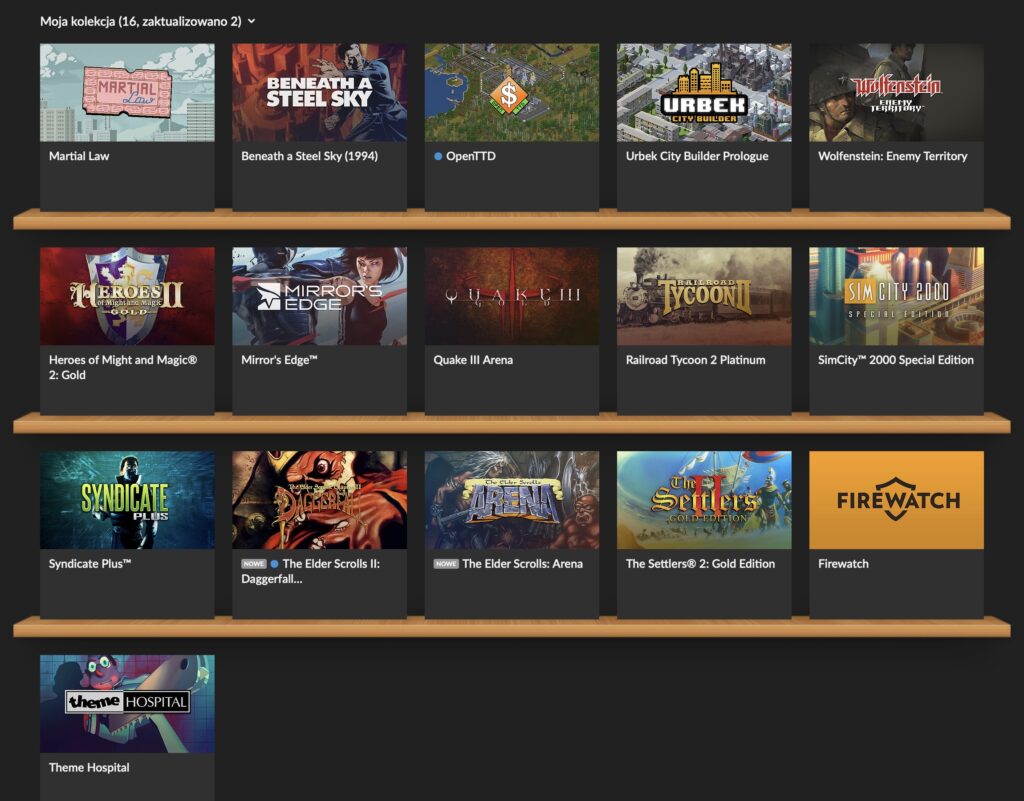
Anyway, the thing with GOG is that for DOS games, they basically ship the installers with DOSBox inside. Some of the games are prepared for both Windows and macOS (like the ones I mentioned earlier). But some are prepared only for Windows, like Settlers II or Heroes of Might & Magic II (HoMM2). And these are my two favorites!
In the old days of Intel Macs, it was fast & easy to spin up VirtualBox or install Windows on the side with BootCamp. But my latest machine is an M2 MacBook running macOS, so virtualized x64 Windows is painfully slow.
I know I can try running an arm64 Windows 11 with Apple native virtualization, but for one I don’t have the key, and for two there is another option I just discovered, namely using DOSBox for Mac.
The steps are simple, but you need a Windows machine for a moment (like an old Intel MacBook with Windows :)) or you need to know how to use Homebrew on your Mac.
First, install DOSBox for Mac.
Second, let’s say you want to run HoMM2. Download HoMM2 installer .exe from GOG, and install it on your Windows machine, or unpack the .exe file using innoextract that you can install with brew install innoextract.
Third, copy these installed game files to your M-series Mac, to something like /Users/<USER>/GOG/HoMM2 where <USER> is your Mac’s user folder.
Fourth, create a DOSBox configuration file in /Users/<USER>/GOG/macoshomm2.conf.
[autoexec]
@echo off
mount C "/Users/<USER>/GOG/HoMM2"
imgmount D "/Users/<USER>/GOG/HoMM2/homm2_macos.cue" -t iso -fs iso
C:
cls
heroes2.exe
exit
This defines a DOSBox script that firstly mounts the HoMM2 folder so DOSBox can read it, then also mounts the required gameplay CD, and finally starts the game.
Check if you have the homm2_macos.cue file in your HoMM2 folder. If not, create it with TextEdit and paste the text below:
FILE "homm2.gog" BINARY
  TRACK 01 MODE1/2352
    INDEX 01 00:00:00
FILE "MUSIC/homm2_01.ogg" MP3
  TRACK 02 AUDIO
      INDEX 01 00:00:00
FILE "MUSIC/homm2_02.ogg" MP3
  TRACK 03 AUDIO
      INDEX 01 00:00:00
FILE "MUSIC/homm2_03.ogg" MP3
  TRACK 04 AUDIO
      INDEX 01 00:00:00
FILE "MUSIC/homm2_04.ogg" MP3
  TRACK 05 AUDIO
      INDEX 01 00:00:00
FILE "MUSIC/homm2_05.ogg" MP3
  TRACK 06 AUDIO
      INDEX 01 00:00:00
FILE "MUSIC/homm2_06.ogg" MP3
  TRACK 07 AUDIO
      INDEX 01 00:00:00
FILE "MUSIC/homm2_07.ogg" MP3
  TRACK 08 AUDIO
      INDEX 01 00:00:00
FILE "MUSIC/homm2_08.ogg" MP3
  TRACK 09 AUDIO
      INDEX 01 00:00:00
FILE "MUSIC/homm2_09.ogg" MP3
  TRACK 10 AUDIO
      INDEX 01 00:00:00
FILE "MUSIC/homm2_10.ogg" MP3
  TRACK 11 AUDIO
      INDEX 01 00:00:00
FILE "MUSIC/homm2_11.ogg" MP3
  TRACK 12 AUDIO
      INDEX 01 00:00:00
FILE "MUSIC/homm2_12.ogg" MP3
  TRACK 13 AUDIO
      INDEX 01 00:00:00
FILE "MUSIC/homm2_13.ogg" MP3
  TRACK 14 AUDIO
      INDEX 01 00:00:00
FILE "MUSIC/homm2_14.ogg" MP3
  TRACK 15 AUDIO
      INDEX 01 00:00:00
FILE "MUSIC/homm2_15.ogg" MP3
  TRACK 16 AUDIO
      INDEX 01 00:00:00
FILE "MUSIC/homm2_16.ogg" MP3
  TRACK 17 AUDIO
      INDEX 01 00:00:00
FILE "MUSIC/homm2_17.ogg" MP3
  TRACK 18 AUDIO
      INDEX 01 00:00:00
FILE "MUSIC/homm2_18.ogg" MP3
  TRACK 19 AUDIO
      INDEX 01 00:00:00
FILE "MUSIC/homm2_19.ogg" MP3
  TRACK 20 AUDIO
      INDEX 01 00:00:00
FILE "MUSIC/homm2_20.ogg" MP3
  TRACK 21 AUDIO
      INDEX 01 00:00:00
FILE "MUSIC/homm2_21.ogg" MP3
  TRACK 22 AUDIO
      INDEX 01 00:00:00
FILE "MUSIC/homm2_22.ogg" MP3
  TRACK 23 AUDIO
      INDEX 01 00:00:00
FILE "MUSIC/homm2_23.ogg" MP3
  TRACK 24 AUDIO
      INDEX 01 00:00:00
FILE "MUSIC/homm2_24.ogg" MP3
  TRACK 25 AUDIO
      INDEX 01 00:00:00
FILE "MUSIC/homm2_25.ogg" MP3
  TRACK 26 AUDIO
      INDEX 01 00:00:00
FILE "MUSIC/homm2_26.ogg" MP3
  TRACK 27 AUDIO
      INDEX 01 00:00:00
FILE "MUSIC/homm2_27.ogg" MP3
  TRACK 28 AUDIO
      INDEX 01 00:00:00
FILE "MUSIC/homm2_28.ogg" MP3
  TRACK 29 AUDIO
      INDEX 01 00:00:00
FILE "MUSIC/homm2_29.ogg" MP3
  TRACK 30 AUDIO
      INDEX 01 00:00:00
FILE "MUSIC/homm2_30.ogg" MP3
  TRACK 31 AUDIO
      INDEX 01 00:00:00
FILE "MUSIC/homm2_31.ogg" MP3
  TRACK 32 AUDIO
      INDEX 01 00:00:00
FILE "MUSIC/homm2_32.ogg" MP3
  TRACK 33 AUDIO
      INDEX 01 00:00:00
FILE "MUSIC/homm2_33.ogg" MP3
  TRACK 34 AUDIO
      INDEX 01 00:00:00
FILE "MUSIC/homm2_34.ogg" MP3
  TRACK 35 AUDIO
      INDEX 01 00:00:00
FILE "MUSIC/homm2_35.ogg" MP3
  TRACK 36 AUDIO
      INDEX 01 00:00:00
FILE "MUSIC/homm2_36.ogg" MP3
  TRACK 37 AUDIO
      INDEX 01 00:00:00
FILE "MUSIC/homm2_37.ogg" MP3
  TRACK 38 AUDIO
      INDEX 01 00:00:00
FILE "MUSIC/homm2_38.ogg" MP3
  TRACK 39 AUDIO
      INDEX 01 00:00:00
FILE "MUSIC/homm2_39.ogg" MP3
  TRACK 40 AUDIO
      INDEX 01 00:00:00
FILE "MUSIC/homm2_40.ogg" MP3
  TRACK 41 AUDIO
      INDEX 01 00:00:00
FILE "MUSIC/homm2_41.ogg" MP3
  TRACK 42 AUDIO
      INDEX 01 00:00:00
FILE "MUSIC/homm2_42.ogg" MP3
  TRACK 43 AUDIO
      INDEX 01 00:00:00
Fifth, create a Mac command file to easily run all this with a double-click, and place it in /Users/<USER>/GOG/RunHoMM2.command.
#!/bin/zsh
set -euo pipefail

ROOT="/Users/<USER>/GOG"
DOSBOX="/Applications/DOSBox.app/Contents/MacOS/DOSBox"

cd "$ROOT/HoMM2"
exec "$DOSBOX" -conf "$ROOT/HoMM2/dosboxhomm2.conf" -conf "$ROOT/macoshomm2.conf"
Here, we just point our local DOSBox for Mac to run HoMM2 instead of using the DOSBox for Windows that ships with the game. Double-click the command file and just like that, the game works on a Mac with Apple Silicon!
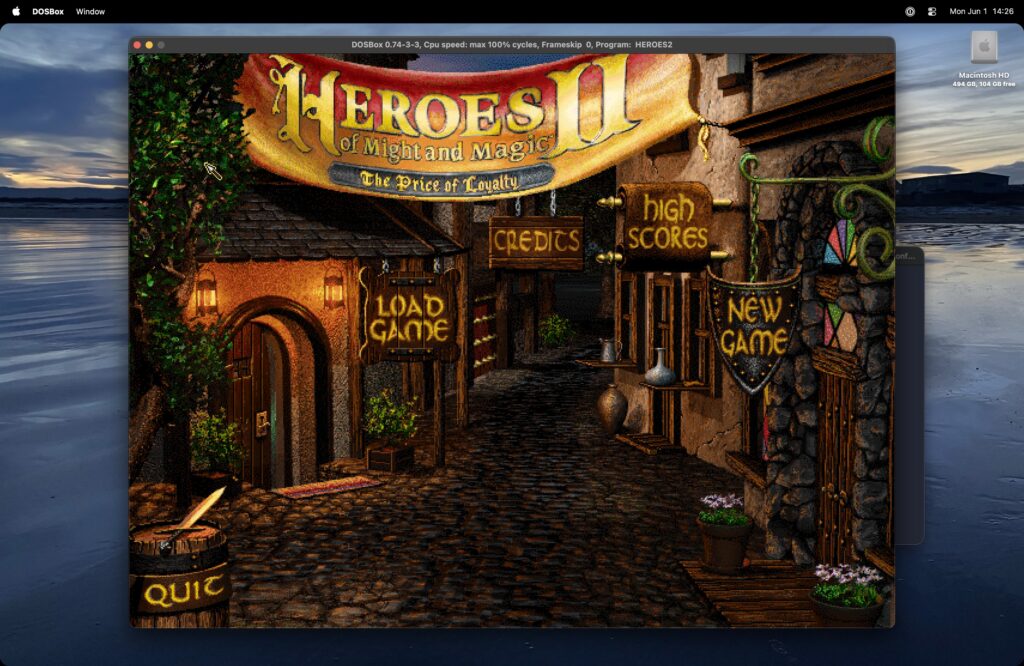
Note that macOS is complaining that in the future versions DOSBox for Mac won’t work anymore, but for now it does, and there are actively developed alternatives like DOSBox-X.
If you want to play in a window instead of fullscreen, or adjust display settings, you can use the many parameters that DOSBox offers and explains in their docs, like the scaler which is fun. Just put them at the top of the .conf file, for example I like to use this:
[sdl]
fullscreen=false
fulldouble=false
fullresolution=desktop
windowresolution=desktop
output=openglnb
autolock=true
waitonerror=true

[render]
aspect=true
scaler=normal2x forced
Happy Children’s Day!
PS. If you want to run DOS games on an iPad, check out iDOS.