Reading a file with spaces in its name and why handling filenames correctly is a daily reality in Linux security work.
Introduction
Day 3. Bandit Level 2 to Level 3. Yesterday the obstacle was a filename that looked like a special character. Today the obstacle is a filename with spaces in it. That might sound even simpler. It is not, and the reason why tells you something important about how the Linux shell actually processes what you type.
This level teaches how the terminal interprets spaces as argument separators. When a filename contains spaces, the shell reads each word as a separate argument unless you tell it otherwise. That behaviour causes commands to fail in ways that are not immediately obvious to someone new to the terminal.
By the end of this article you will know two reliable methods for handling filenames with spaces and why tab completion is one of the most underused tools available to every Linux user.
Level Objective
The password for Level 3 is stored in a file called spaces in this filename located in the home directory of bandit2. The challenge is that running cat spaces in this filename tells the terminal you want to read four separate files named spaces, in, this and filename. None of those files exist so the command fails. You need a way to tell the shell the entire phrase is one single filename.
Approach
I logged in using the password retrieved from Level 1 to Level 2:
ssh [email protected] -p 2220
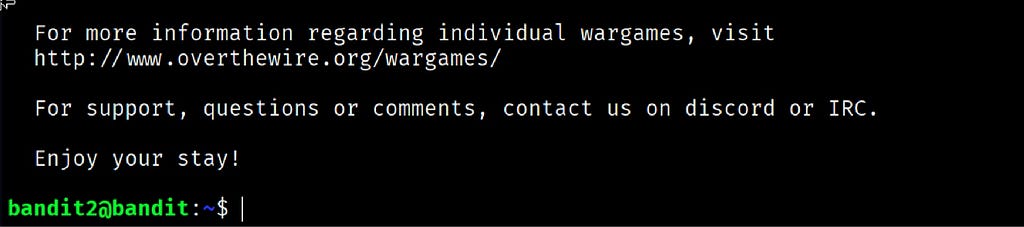
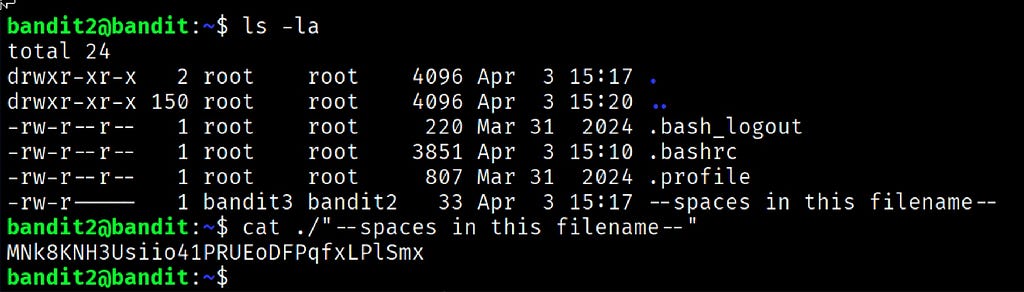
The banner appeared and the prompt changed to bandit2@bandit:~$. I ran ls to confirm the file and saw it immediately: spaces in this filename.
My first attempt was the naive one. I ran cat spaces in this filename without any special handling. The terminal responded with four separate error messages saying each word was not found as a file. That confirmed exactly what the shell was doing with those spaces.
I used two methods to fix it. The first was wrapping the entire filename in double quotes:
cat “spaces in this filename”
The second was escaping each space individually using a backslash:
cat spaces\ in\ this\ filename
Both worked. The password printed to the terminal. The cleanest method by far though was tab completion. I typed cat sp and pressed Tab. The shell automatically completed the full filename with every space escaped. One keypress and the problem was solved.
Commands Used
# Connect to the Bandit server as bandit2 using the Level 2 password
ssh [email protected] -p 2220
# List the contents of the home directory to see the filename
ls
# Attempt without handling spaces — this fails
cat spaces in this filename
# Read the file using double quotes around the full filename
cat “spaces in this filename”
# Read the file using backslash to escape each space
cat spaces\ in\ this\ filename
Command Breakdown
cat “spaces in this filename”
Wrapping a filename in double quotes tells the shell to treat everything inside the quotes as a single argument. The spaces are no longer interpreted as separators.
cat spaces\ in\ this\ filename
The backslash before each space is an escape character. It tells the shell to treat the following space as a literal character rather than an argument separator.
Tab completion
Pressing Tab after typing the first few characters of a filename lets the shell complete it automatically. When spaces are present the shell adds the necessary escape characters for you. This is faster and more reliable than typing the full name manually.
ls
Always the first command after login. Without running ls first you would not know the filename contained spaces and would spend time debugging a problem you could have seen immediately.
Lesson Learned
The main technical takeaway is that the shell uses spaces to separate arguments. That is a core design decision in how Linux command lines work and it will come up constantly. Quotes and backslash escaping are the two standard solutions and both are worth knowing cold.
What made this level click for me was discovering tab completion as a practical shortcut. It is not just a convenience feature. In a SOC environment where you are working quickly on unfamiliar systems, tab completion reduces typos, confirms file existence and handles special characters automatically. That combination matters when speed and accuracy are both required.
Going forward I will always attempt tab completion first on any filename that looks unusual. If the shell can complete it, I let the shell do the work.
• cat “filename” — use quotes to handle spaces or special characters in filenames
• cat file\ name — use backslash escaping as an alternative to quotes
• Tab — press to auto-complete filenames and let the shell handle escaping
• ls — always run this first to see exactly what you are working with
• ls -la — use this version to see hidden files and full file details
🔴 SOC Analyst Insight
Filenames with spaces appear regularly in real investigations. Malware dropped onto Windows endpoints often uses filenames with spaces designed to break automated parsing scripts that are not written to handle them. When those files are transferred to a Linux analysis environment, analysts who are not comfortable with quoting and escaping will struggle to interact with them at the command line.
# Search for recently created files with spaces in their names in a suspicious directory
find /home -name “* *” -newer /var/log/auth.log 2>/dev/null
An analyst who sees a filename like windows update installer.exe in an evidence directory and cannot read or hash it efficiently is slowed down at exactly the moment they need to move fast. The find command above identifies files with spaces that were created after a specific timestamp, which is a useful starting point when triaging a compromised host.
This Bandit level is a controlled version of that exact problem. The skill is not just knowing the syntax. It is building the reflexes to handle unexpected filenames without breaking stride during an investigation.
Key Takeaway
Spaces in filenames are one of the most common sources of command line errors for beginners and one of the easiest to fix once you understand why they happen. Quotes, backslash escaping and tab completion are three tools that address the same underlying problem. Knowing all three and reaching for the right one quickly is what separates a confident terminal user from one who gets slowed down by something that should take five seconds to resolve.
📅 30-Day Cybersecurity Learning Journey — Progress
✅ Day 0. — Setup & Series Introduction. | OverTheWire Bandit
✅ Day 1. — Bandit Level 0 → 1. | SSH
✅ Day 2. — Bandit Level 1 → 2. | Special characters
✅ Day 3. — Bandit Level 2 → 3. | Spaces in filenames. ← today
⬜ Day 4. — Bandit Level 3 → 4. | coming next
Follow along with the series as I document each level, command and lesson learned.
The shell does exactly what you tell it. Learn to tell it precisely what you mean and filenames with spaces become a five-second problem.
OverTheWire Bandit Walkthrough — Level 2 → 3 | 30-Day Cybersecurity Learning Journey (Day 3) was originally published in System Weakness on Medium, where people are continuing the conversation by highlighting and responding to this story.