Using Netcat to submit a password to a network port and why understanding raw TCP communication is a foundational skill for every SOC analyst.
Introduction
Day 14. Bandit Level 14 to Level 15. This level begins on the local machine. The SSH key retrieved in Day 13 is now in use. The connection happens without a password. Once inside as bandit14, the first task is reading the current level's password from the system password file and the second is submitting it to a specific port on localhost using Netcat to receive the next one.
This level introduces network communication at its most direct. Netcat opens a raw TCP connection and lets you send and receive data across it straight from the terminal. No browser, no client application and no abstraction layer. Just a port, a string and a response. That simplicity is exactly what makes it one of the most useful tools in both offensive and defensive security work.
By the end of this article you will know how to authenticate using an SSH key, read a system password file, open a raw TCP connection and submit data to a listening service to retrieve a credential.
Level Objective
The password for the next level can be retrieved by submitting the password of the current level to port 30000 on localhost. The commands suggested by OverTheWire for this level include ssh, telnet, nc, openssl, s_client and nmap.
Approach
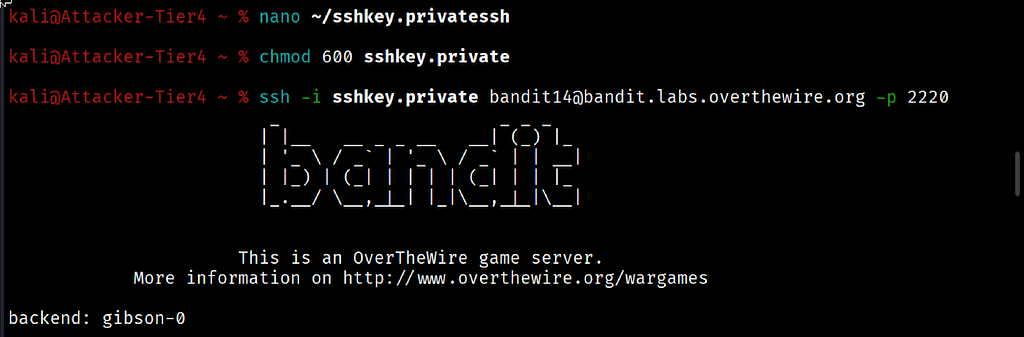
This level began on my local Kali machine. The private key saved from Day 13 needed the correct permissions set before SSH would accept it. I set them using chmod 600 and then connected as bandit14:
chmod 600 sshkey.private
ssh -i sshkey.private [email protected] -p 2220
The full Bandit ASCII art banner loaded, confirming the key-based authentication worked. No password prompt appeared.
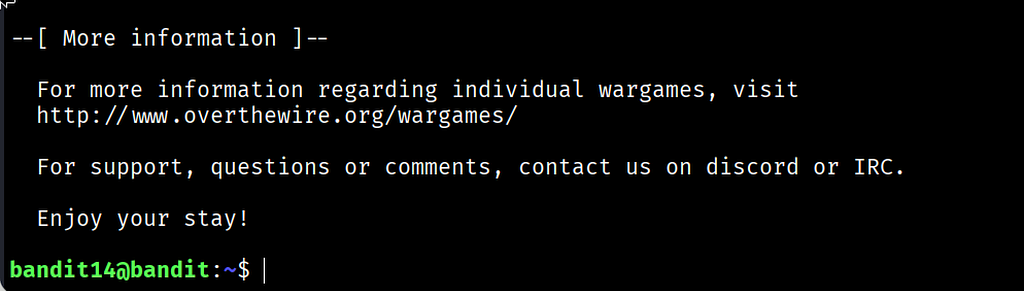
Once inside I ran ls -la on the home directory. The only notable item was a .ssh directory owned by root. There were no readable files in the home directory itself. The password for this level lives in the system password file which is only accessible to bandit14:
cat /etc/bandit_pass/bandit14
The password printed to the terminal: MU4VWeTyJk8ROof1qqmcB…………………..
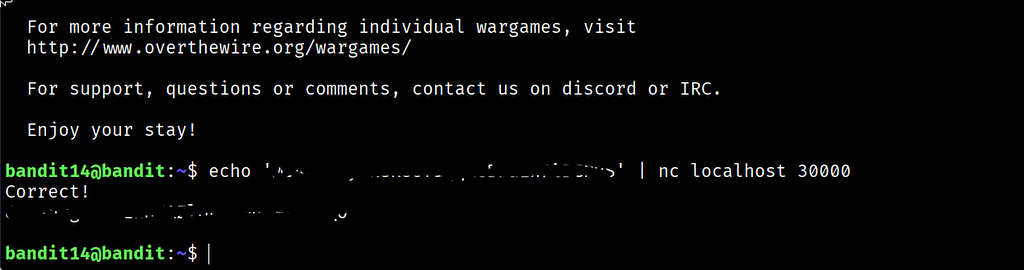
With the current password in hand I submitted it to port 30000 on localhost using Netcat. Piping the password directly through echo into nc handled the submission automatically without any interactive input:
echo 'MU4VWeTyJk8ROof1...............' | nc localhost 30000
The server responded immediately with Correct! followed by the password for Level 15 on the next line.
Commands Used
# On local Kali machine: set correct permissions on the private key file
chmod 600 sshkey.private
# Connect to the Bandit server as bandit14 using the private key
ssh -i sshkey.private [email protected] -p 2220
# List the home directory after login
ls -la
# Read the bandit14 password from the system password file
cat /etc/bandit_pass/bandit14
# Submit the current password to port 30000 and receive the next one
echo 'MU4VWeTyJk8ROof1qqmcB.............' | nc localhost 30000
Command Breakdown
chmod 600 sshkey.private Sets the private key file to read and write for the owner only. SSH enforces this permission check and will refuse to use a key file that other users on the system can read. Running this before attempting the connection prevents an "Unprotected private key file" error.
ssh -i sshkey.private [email protected] -p 2220 Connects to the Bandit server as bandit14 using the private key for authentication. The -i flag specifies the identity file. No password prompt appears because the key handles authentication cryptographically.
cat /etc/bandit_pass/bandit14 Reads the password file for the current user. This file is only accessible to bandit14. The password retrieved here is what gets submitted to port 30000. This two-step process of reading then submitting is the core of this level.
echo 'password' | nc localhost 30000 Opens a TCP connection to port 30000 on the local machine and immediately sends the password string as input. The echo command generates the string with a newline at the end. The pipe sends it directly into the Netcat connection. The server validates it and responds with the next password.
nc Short for Netcat. A networking utility that reads and writes data across TCP and UDP connections. Here it is acting as a client connecting to a service. The server on port 30000 accepts the password, validates it and returns a new credential.
Lesson Learned
The main technical takeaway is that network services communicate through ports and any service listening on a port can be reached and interacted with using Netcat. This level removed every layer of abstraction: one command sent the password, one command received the response. That directness is what makes Netcat so valuable for testing, debugging and investigation.
The two-step approach in this level is also worth noting. First read the credential from the file system. Then submit it to the network service. That sequence appears in real automation and scripting work constantly. Understanding each step individually makes the combination intuitive.
The Correct! response from the server is also informative. A service that tells you whether your submission was valid is providing meaningful feedback. During penetration testing and service enumeration, that kind of response tells an analyst what the service is designed to do and how it validates input.
- nc hostname port — open a TCP connection to a service
- echo "data" | nc hostname port — send a specific string to a service automatically
- nc -l -p 4444 — start Netcat as a listener on a specific port
- nc -zv hostname port — test whether a port is open without sending data
- chmod 600 keyfile — always set correct permissions on private key files before use
🔴 SOC Analyst Insight
Netcat is used in both offensive and defensive security contexts and understanding it from both sides makes an analyst significantly more effective. During a host investigation, analysts use Netcat to test connectivity to suspicious ports and probe services to understand what they accept and return. During threat hunting, analysts look for unexpected Netcat activity in process logs because it is a common tool for reverse shells, file transfers and backdoor listeners.
# Check for active Netcat processes on a potentially compromised Linux host
ps aux | grep -E "\bnc\b|\bnetcat\b|\bncat\b" | grep -v grep
The command above searches for running Netcat variants during host triage. An unexpected nc process listening on a high port or connecting outbound to an unfamiliar IP is a significant indicator of compromise. Attackers use Netcat listeners as simple command and control channels because they require no additional tools and leave a minimal forensic footprint. Knowing exactly how Netcat works means you understand precisely what an attacker is doing when you see it in process output or network logs.
Key Takeaway
Netcat removes every abstraction between the analyst and the network service. A raw TCP connection, a string of data and a server response is the simplest possible model of network communication. Understanding that model at this level makes every more complex network tool easier to understand because they all build on the same foundation. This level combined SSH key authentication, system file reading and raw network communication into one complete workflow. That combination appears in real security work more often than any single skill in isolation.
30-Day Cybersecurity Learning Journey — Progress
🟢 Open Day — Setup & Series Introduction  | OverTheWire Bandit
✅ Day 0.   — Bandit Level 0               | First Login
✅ Day 1.   — Bandit Level 1 → 2           | Special Characters
✅ Day 2.   — Bandit Level 2 → 3           | Spaces in Filenames
✅ Day 3.   — Bandit Level 3 → 4           | Hidden Files
✅ Day 4.   — Bandit Level 4 → 5           | File Types
✅ Day 5.   — Bandit Level 5 → 6           | find with Properties
✅ Day 6.   — Bandit Level 6 → 7           | find across Filesystem
✅ Day 7.   — Bandit Level 7 → 8           | grep
✅ Day 8.   — Bandit Level 8 → 9           | sort and uniq
✅ Day 9.   — Bandit Level 9 → 10          | strings and grep
✅ Day 10.  — Bandit Level 10 → 11         | base64
✅ Day 11.  — Bandit Level 11 → 12         | ROT13 and tr
✅ Day 12.  — Bandit Level 12 → 13         | hexdump and compression
✅ Day 13.  — Bandit Level 13 → 14         | SSH keys
✅ Day 14.  — Bandit Level 14 → 15         | Netcat  ← today
⬜ Day 15.  — Bandit Level 15 → 16         | coming next
Follow along with the series as I document each level, command and lesson learned.
Most network services will tell you exactly what they need if you know how to ask. Netcat is how you ask.
OverTheWire Bandit Walkthrough — Level 14 → 15 | 30-Day Cybersecurity Learning Journey (Day 14) was originally published in System Weakness on Medium, where people are continuing the conversation by highlighting and responding to this story.