Reading a file with a dash as its name and why understanding how Linux interprets special characters matters in real security work.
Introduction
Day 2. Bandit Level 1 to Level 2. Yesterday the goal was simple: log in and read a file called readme. Today the file exists in the same place but the filename is a single dash. That one character changes everything about how you read it.
This level teaches something that trips up beginners constantly. Linux treats a dash as a special character in many contexts. When you pass it to a command, the terminal does not always interpret it as a filename. Understanding why that happens and how to work around it is a skill that shows up repeatedly in scripting, log parsing and security tooling.
By the end of this article you will know exactly why a dash causes problems in the terminal and two reliable ways to handle it. That knowledge will save you real time when you encounter similar issues during a live investigation.
Level Objective
The password for Level 2 is stored in a file called — located in the home directory of bandit1. The challenge is that you cannot simply run cat — to read it. You need to tell the terminal to treat the dash as a filename rather than a special instruction. The OverTheWire page hints to use Google if you get stuck, which is exactly what a real analyst would do when hitting an unfamiliar behaviour.
Approach
I logged in using the password retrieved from Level 0 to Level 1:
ssh [email protected] -p 2220
The banner appeared and the prompt changed to bandit1@bandit:~$. I ran ls to confirm the file was there. It was. A single dash sitting in the home directory.
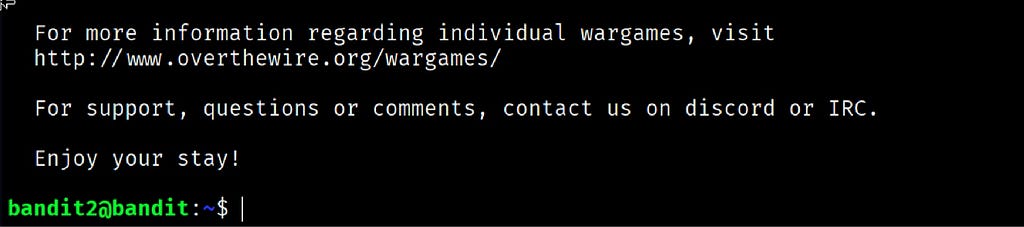
Logged into bandit1 via SSH on port 2220.
My first instinct was to just run cat -. That was wrong. The terminal hung completely. It was waiting for input from stdin because a standalone dash tells cat to read from the keyboard rather than from a file. I pressed Ctrl + C to cancel and regrouped.
The fix is to give the terminal an explicit path so it knows you mean a file and not a special instruction. I used two approaches and both worked:
cat ./-
cat < -
The first approach uses ./ to tell the terminal the dash is a file in the current directory. The second uses input redirection to feed the file into cat directly. The password printed to the terminal immediately.
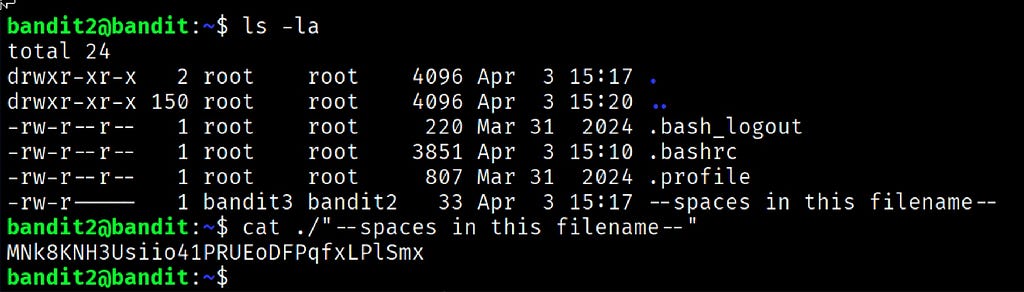
Caption: Password for Level 2 retrieved.
Commands Used
# Connect to the Bandit server as bandit1 using the Level 1 password
ssh [email protected] -p 2220
# List the contents of the home directory to confirm the file exists
ls
# Attempt to read the file directly — this hangs because dash means stdin
cat -
# Read the file correctly by specifying the current directory path
cat ./-
# Alternative method using input redirection
cat < -
Command Breakdown
cat ./-
The ./ tells the terminal to look in the current directory for a file literally named -. Without it, cat interprets the dash as an instruction to read from the keyboard instead of a file.
cat < -
The < operator redirects the contents of the file named — into the cat command as input. This bypasses the special character interpretation entirely.
./
A path prefix meaning “in the current directory.” It forces the shell to treat whatever follows as a filename rather than a flag or special character.
Ctrl + C
Cancels a running or hanging command and returns you to the prompt. Essential muscle memory for any terminal user.
Lesson Learned
The main technical takeaway is that Linux commands treat a standalone dash as stdin by convention. That behaviour is intentional and used legitimately in many scripts and pipelines. The problem is knowing when you are hitting that convention by accident versus on purpose.
What made this click for me was realising that ./ is not just a style choice. It is a way of being explicit with the shell about what you actually mean. Whenever a filename looks like it could be interpreted as something else, prefix it with ./ and the ambiguity disappears.
Next time I encounter a file with an unusual name I will check the filename carefully before running any command on it. A quick ls and a moment of thought before typing saves you from a hanging terminal.
• cat ./- — read a file named with a special character using a path prefix
• cat < filename — use input redirection as an alternative reading method
• ./ — prefix to explicitly reference files in the current directory
• Ctrl + C — cancel a hanging or running command immediately
• ls -la — list all files including ones with unusual names
🔴 SOC Analyst Insight
In a real SOC environment, files with unusual or obfuscated names are a common tactic used by attackers to make malicious files harder to find and harder to interact with. A threat actor might name a backdoor script — or — or use invisible Unicode characters in a filename specifically because it breaks naive analysis attempts.
# Search for files with unusual or non-standard names in a suspicious directory
find /tmp -maxdepth 1 -name “.*” -o -name “-*” 2>/dev/null
If an analyst runs cat — on a suspicious file without thinking and the terminal hangs, they might assume the file is empty or corrupted and move on. That assumption could mean missing evidence. Knowing exactly why the terminal behaves that way keeps you from making that call under pressure.
This level is a small but important reminder that the terminal is precise and literal. It does exactly what you tell it. The skill is learning to tell it the right thing the first time, especially when the clock is running during an active investigation.
Key Takeaway
A single character in a filename can completely change how the terminal behaves. Understanding why Linux treats a dash as stdin rather than a filename is not trivia. It is the kind of precise knowledge that separates analysts who move confidently through a command line from analysts who get stuck on unexpected behaviour. The ./ prefix and input redirection are simple tools but knowing when to reach for them is what matters.
📅 30-Day Cybersecurity Learning Journey — Progress
✅ Day 0. — Setup & Series Introduction. | OverTheWire Bandit
✅ Day 1. — Bandit Level 0 → 1. | SSH
✅ Day 2. — Bandit Level 1 → 2. | Special characters. ← today
⬜ Day 3. — Bandit Level 2 → 3. | coming next
Follow along with the series as I document each level, command and lesson learned.
The terminal is precise and literal. Learn to speak its language exactly and it will never mislead you.
OverTheWire Bandit Walkthrough — Level 1 → 2 | 30-Day Cybersecurity Learning Journey (Day 2) was originally published in System Weakness on Medium, where people are continuing the conversation by highlighting and responding to this story.